Joining Capsule
Capsule turns the school's emails into one short page each morning: uniform, dismissal, what's due, and what's coming up. Here's exactly what you'll see when you open your invite link. It takes about two minutes.
Create your account
The screenshots use a made-up family. Your screens will show your own names.
1Open your invite link
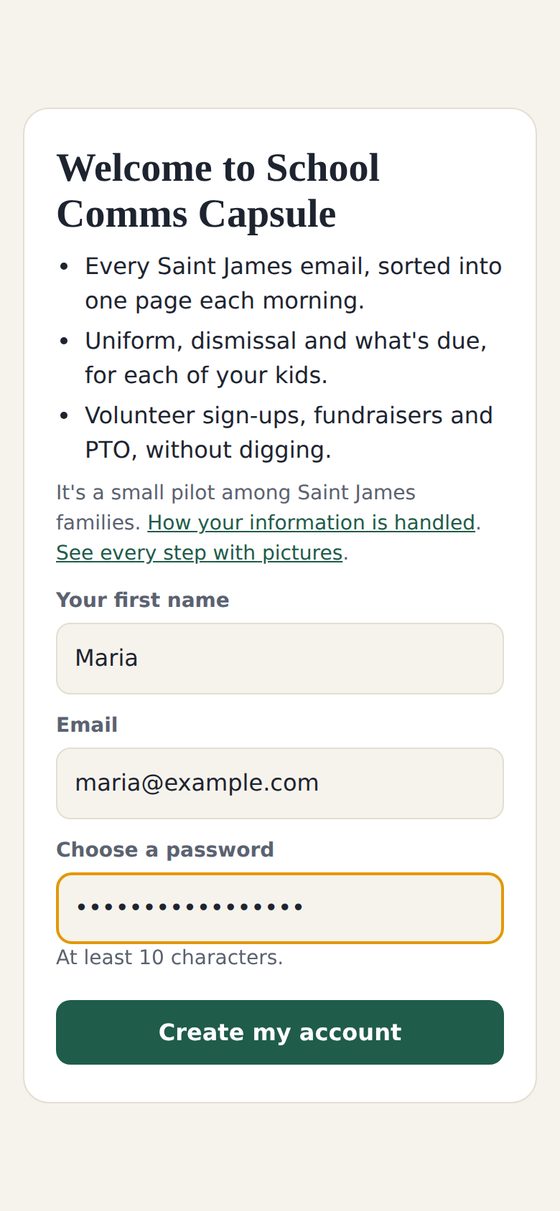
Type your first name and the email you'll sign in with, then choose a password (10 characters or more). Tap Create my account.
Each invite link works once. If it says the link was already used, ask the parent who sent it for a new one.
2Add your kids
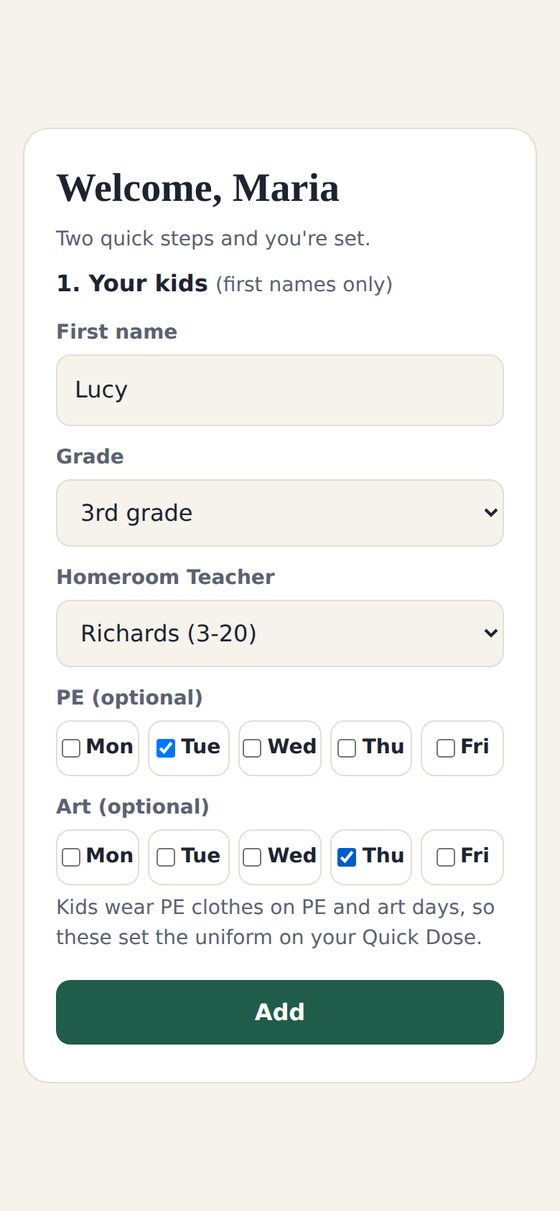
- First name only.
- Grade, then Homeroom Teacher. The list only shows teachers in that grade. Pick "Not sure yet" if you don't know.
- PE and art days are optional. If you tick them, the Quick Dose tells you when to send PE clothes.
Tap Add. Then add another child the same way.
Just read, or forward your email?
Once your kids are added, Capsule asks how school email should get in. You can change your mind later from your account page.
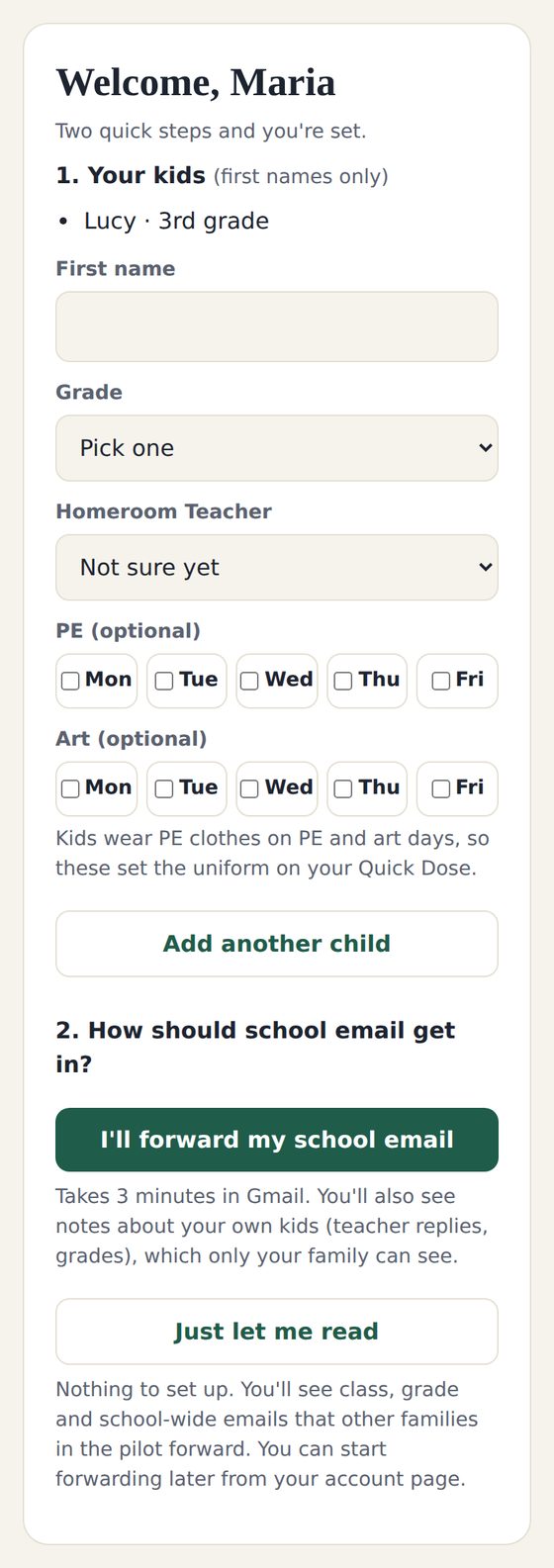
You'll see the class, grade and school-wide emails that other families in the pilot forward. Done in one tap.
You'll also get things only your family receives, like teacher replies and notes about your child. Only your family can see those.
If you chose "Just let me read"
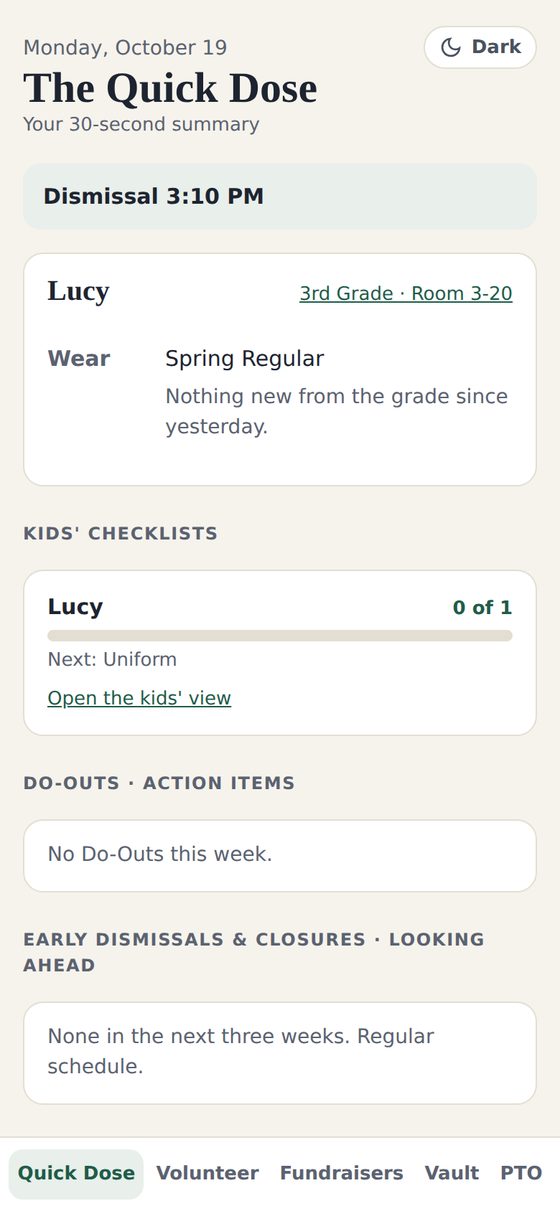
You go straight to your Quick Dose: today's dismissal, what each child wears, things to do, and what's coming up. That's it. You're done.
Tip: add the page to your phone's home screen so it opens like an app.
Set up forwarding in Gmail
Do this on a computer. Gmail's phone app doesn't have the forwarding settings. Capsule walks you through it and shows each step working as you go.
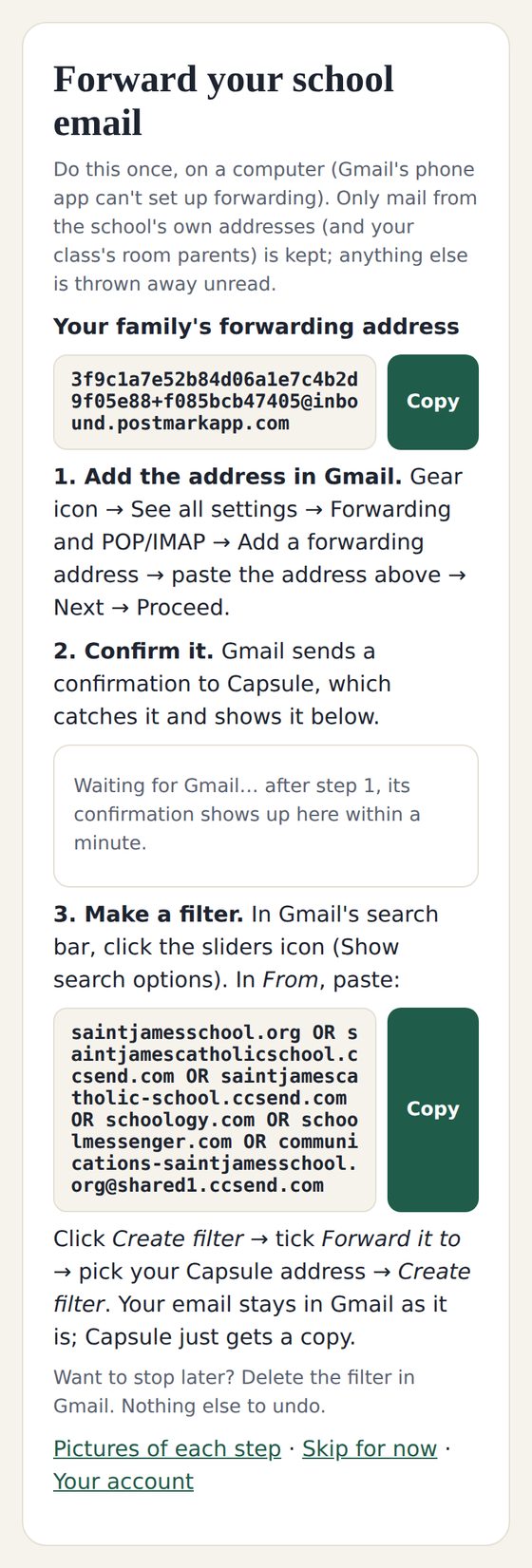
1Add your Capsule address in Gmail
The page shows your family's own forwarding address, with a Copy button. In Gmail: gear icon → See all settings → Forwarding and POP/IMAP → Add a forwarding address → paste it → Next → Proceed.
Every family gets a different address, so yours won't match the one in this picture.
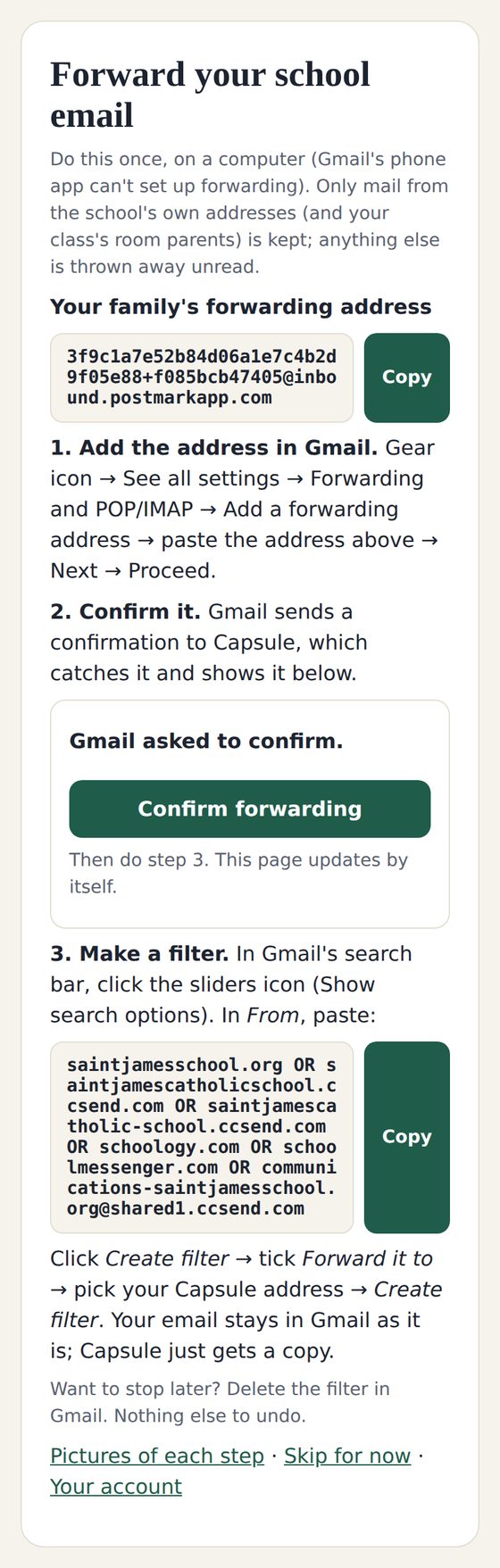
2Confirm it
Gmail sends a confirmation, and Capsule catches it for you. Within a minute a green Confirm forwarding button appears on the page. Click it once while you're signed in to Gmail.
You don't need to dig through your inbox for a code.
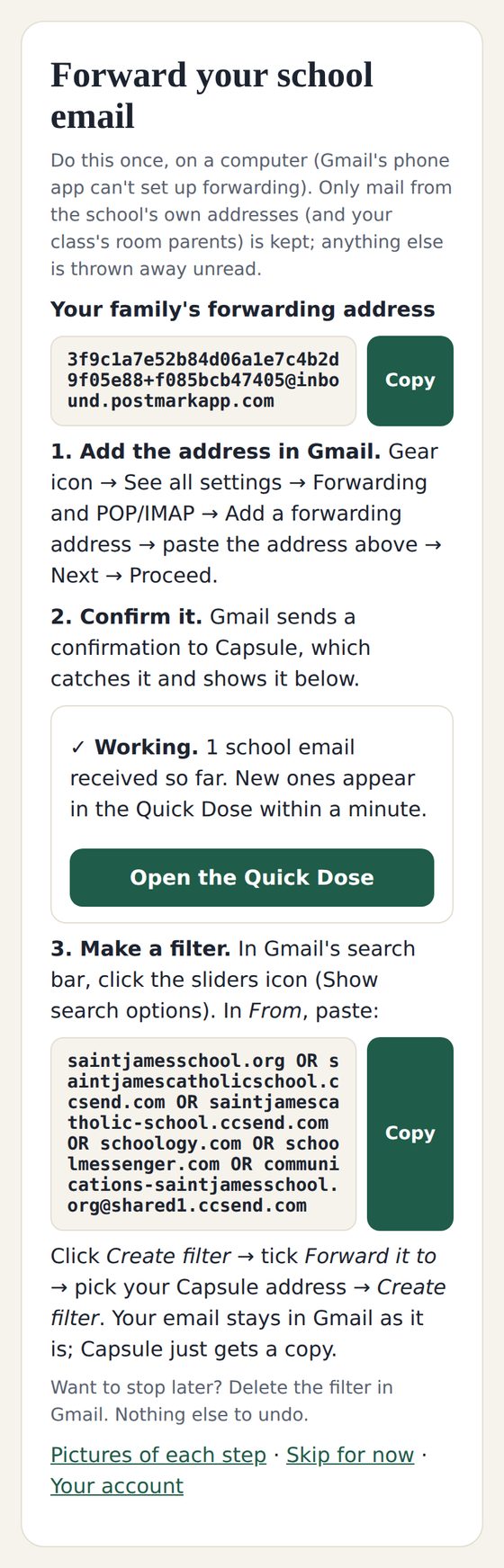
3Make the filter
Copy the list of school addresses from step 3 on the page. In Gmail's search bar, click the sliders icon, paste the list into From, then Create filter → tick Forward it to → pick your Capsule address → Create filter.
When the next school email arrives, the page changes to ✓ Working.
Your email stays in Gmail as it is. Capsule only gets a copy of school mail; anything else is thrown away unread. To stop, delete the filter.
Add a co-parent or caregiver
Each grown-up gets their own sign-in, and everyone sees the same kids and the same Quick Dose. Only one person adds the kids. Everyone else joins with a link from that person.
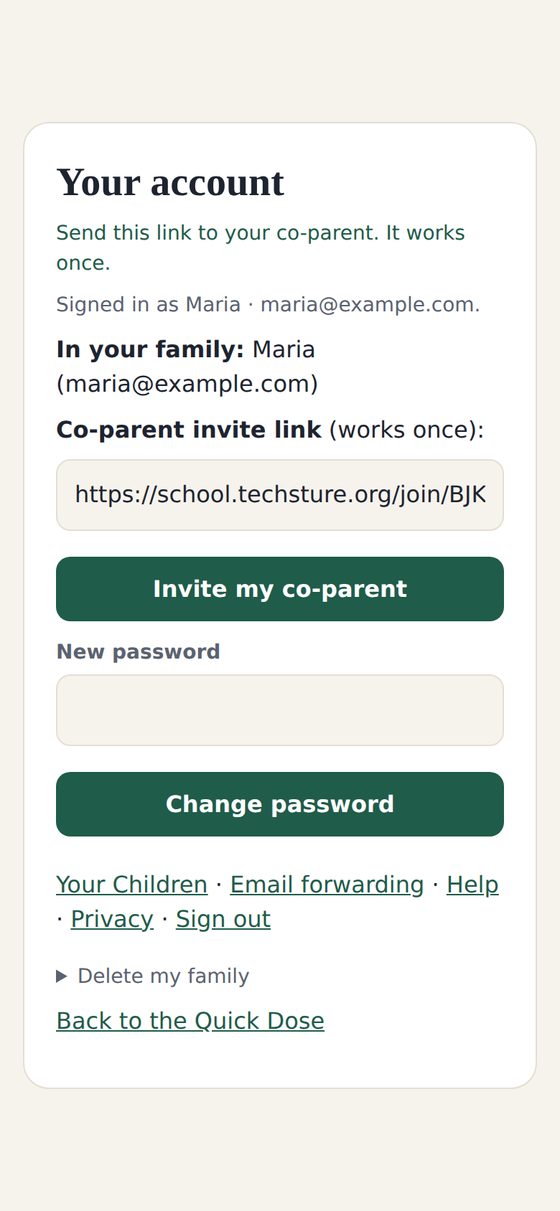
1Make a co-parent link
At the bottom of the Quick Dose, tap Account, then Invite my co-parent. Copy the link it shows and text or email it to them.
Each link works once. Make one per person: a spouse, a grandparent, a nanny.
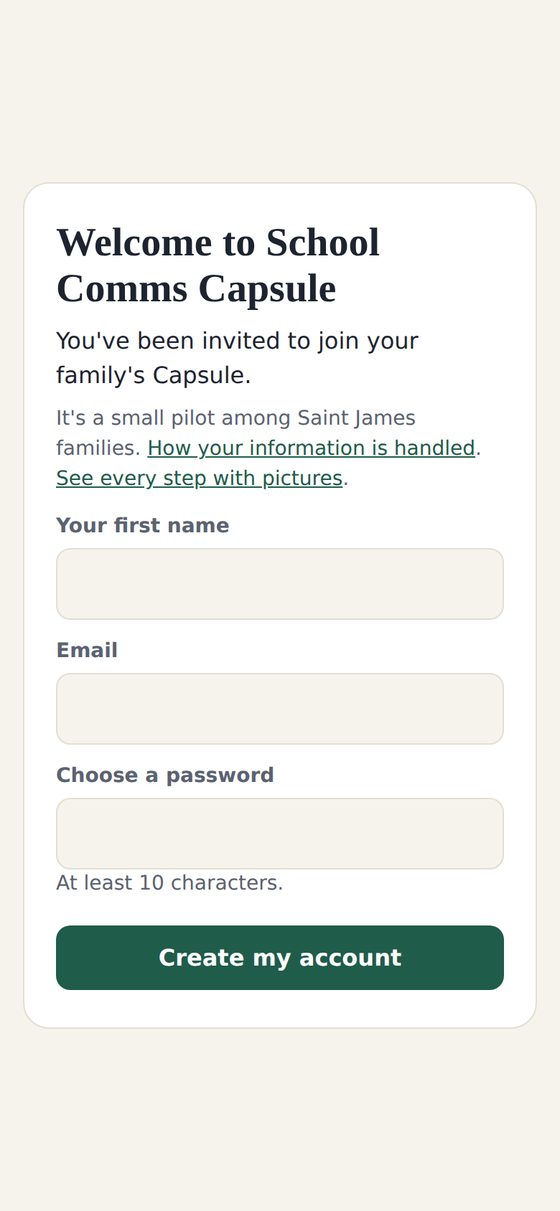
2They open it and sign up
The page says "You've been invited to join your family's Capsule." They enter their own name, email and password.
There's no kids step for them. They land right on the same Quick Dose, with the kids already there.
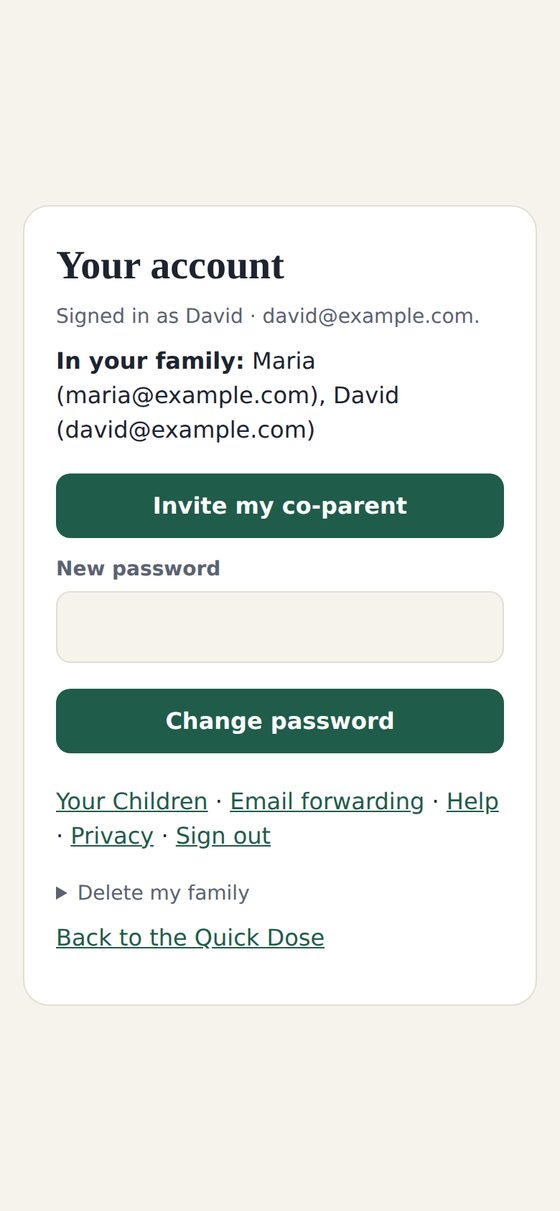
3Both of you are in one family
Either account page lists everyone in the family. What one person checks off, the other sees too.
Forwarding: the family has one forwarding address. Either grown-up, or both, can forward their Gmail to it. If you both forward the same school email, Capsule keeps it once.
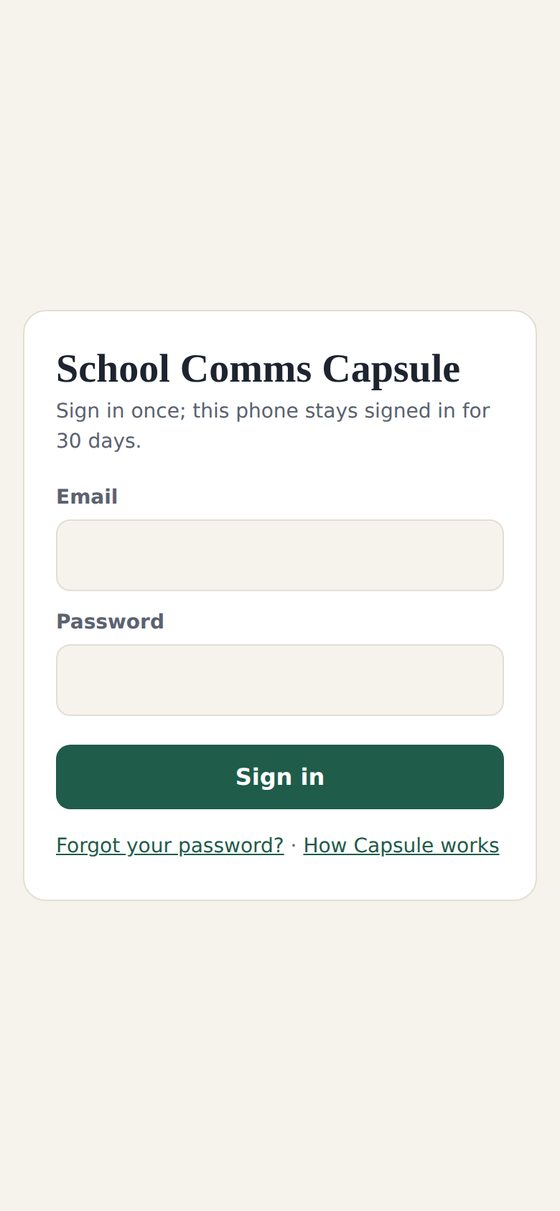
Coming back later
Go to school.techsture.org and sign in with your email and password. Your phone stays signed in for 30 days.
Forgot your password? Tap Forgot your password? on the sign-in page and Capsule emails you a link.